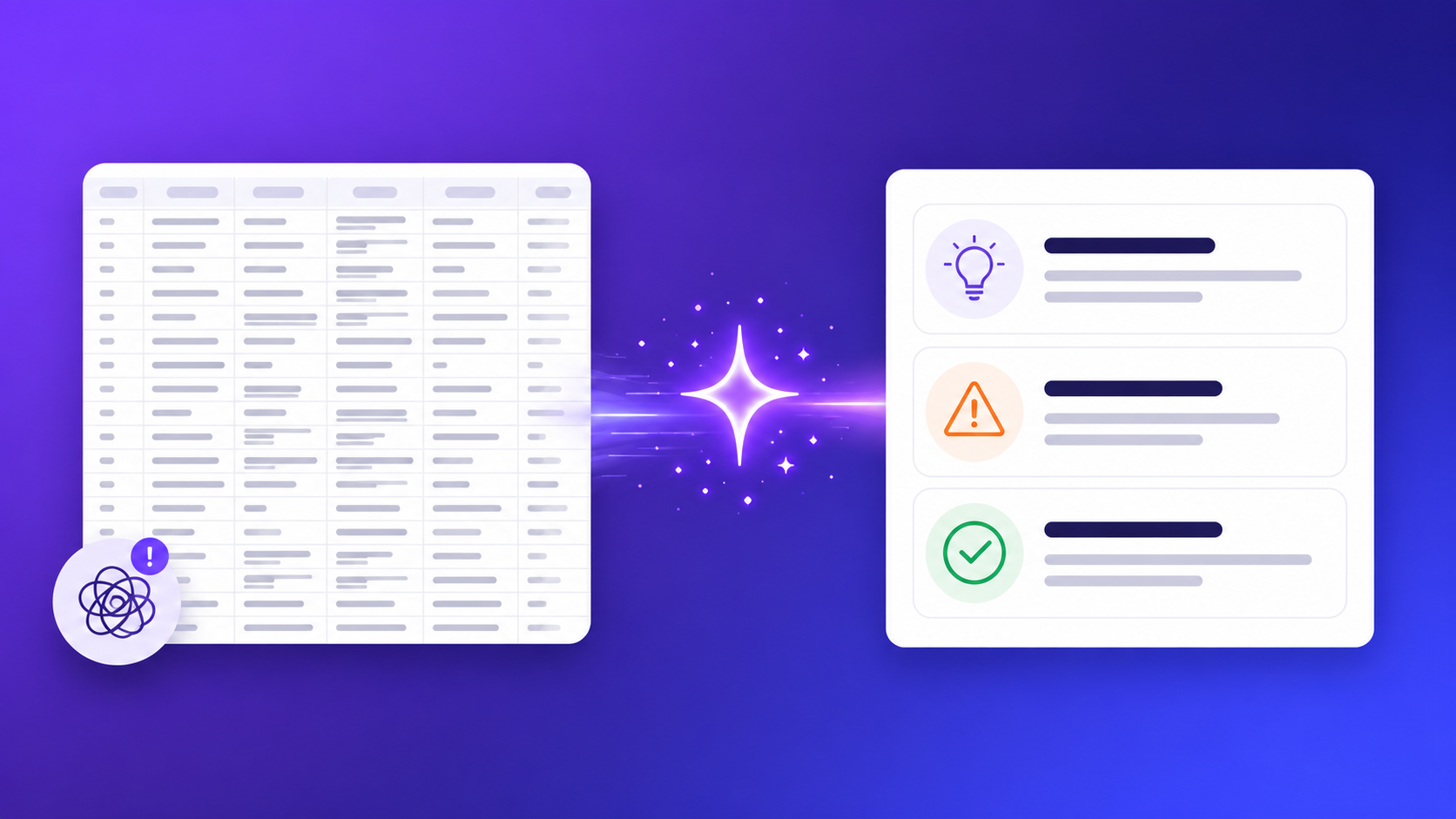
Collecting survey responses is straightforward. Making sense of what 200 people wrote in an open-text field is not. Most teams hit the same wall: the quantitative data — ratings, scales, multiple choice — is easy to summarise with averages and charts. The qualitative data, the written responses, is where analysis stalls.
That's where knowing how to analyze survey responses with AI changes the workload entirely. Not by reading the responses for you, but by identifying patterns across all of them in the time it would take you to read the first twenty. This post covers the specific prompts that work, the honest limitations of AI analysis, and the end-to-end workflow from response collection to actionable insight.
Why Spreadsheet Analysis Fails at Scale
A spreadsheet full of open-text survey responses is technically a database. It's also, practically, a wall of text that nobody reads past the first scroll. For ten to twenty responses, reading every answer individually is manageable — slow, but manageable. For fifty responses it becomes a half-day project. For two hundred it becomes a project that quietly gets deprioritised until the next survey cycle makes the current one feel irrelevant.
The core problem is that quantitative and qualitative data require completely different analysis approaches, and most teams only have infrastructure for one. Rating scale data is easy: calculate the average, plot the distribution, compare to last quarter. Open-text data requires reading, pattern recognition, synthesis, and judgment — and the volume that makes a survey statistically meaningful is exactly the volume that makes manual qualitative analysis impractical.
The cost of skipping open-text analysis is significant. Multiple choice answers tell you what respondents think; open-text answers tell you why. A 3.2 average on a manager effectiveness question is a data point. The sixty written responses explaining what effective or ineffective looks like in practice are the insight. Most teams with high survey response rates and low open-text analysis rates are systematically discarding the most valuable data they collected.
How to Analyze Survey Responses with AI: The Core Workflow
The workflow has three steps, and the most important design decision happens in step two.
Step 1: Export your responses
In Promptly Forms, go to your form's responses dashboard and export as CSV. The export includes every field, timestamp, and response in a structured format. If you're using another form tool, most have equivalent export functionality.
Step 2: Paste the open-text column into an AI with a specific prompt
This is the critical decision: don't paste the entire spreadsheet. Copy one column — the open-text responses to one specific question — and paste it into ChatGPT or Claude alongside a focused analysis prompt. AI handles one concentrated question far better than a full mixed dataset. When you ask it to analyse everything at once, the output is generic. When you ask it to analyse fifty responses to one specific question, the output is specific and actionable.
Step 3: Review themes and act on insights
AI output for survey analysis should be treated as a structured first read, not a final verdict. Review the themes it identifies against your own knowledge of the respondent group, check that flagged responses genuinely require attention, and use the synthesis as the basis for your team communication rather than copying it verbatim.
Before any of this happens, you need responses worth analysing. The AI form builder generates complete surveys — including open-text questions that produce usable qualitative data — in under 10 seconds. Free plan includes 100 responses per month.
Prompts to Analyze Survey Responses with AI
These five prompts handle the most common survey analysis tasks. Each is ready to use — paste your responses after the opening line.
Prompt 1 — Theme extraction
Here are [X] responses to the survey question
"[question text]". Identify the top 5 themes.
For each theme, provide: the theme name,
a 1-sentence description, and 2-3 example phrases
from the responses that represent it.
List themes in order of frequency.
What it produces: A structured list of recurring themes ranked by how frequently they appear across your response set, with representative language from actual responses to validate each theme. When to use it: Any open-text question with more than twenty responses, particularly for NPS follow-up questions, product feedback, and customer satisfaction surveys.
Prompt 2 — Urgent response flagging
Here are employee survey responses to
"[question text]". Flag any responses that suggest:
immediate risk of departure, safety or wellbeing
concerns, or management issues requiring attention.
Do not quote responses verbatim —
summarise the concern only.
What it produces: A short list of responses requiring human review, summarised without quoting directly — preserving anonymity while surfacing the issues that need attention. When to use it: Employee engagement surveys, retention surveys, and any survey where a small number of responses may require urgent follow-up.
Prompt 3 — Sentiment analysis
Categorise these [X] survey responses as
Positive, Neutral, or Negative. Then provide:
total count in each category, the most common
positive theme, and the most common negative theme.
Format as a brief summary paragraph, not a list.
What it produces: A paragraph-format sentiment breakdown with counts and the dominant themes driving each sentiment category. When to use it: Post-event feedback, customer satisfaction surveys, and any context where overall sentiment needs to be communicated quickly to a non-technical audience.
Prompt 4 — Competitive intelligence
Here are responses to the question
"What alternatives did you consider before choosing us?"
List every competitor or alternative mentioned,
how many times each appears, and any specific
reasons given for choosing us over them
or them over us.
What it produces: A ranked list of alternatives with frequency counts and qualitative reasons, drawn directly from what respondents wrote. When to use it: Post-purchase surveys, product research surveys, and any form that collects win/loss or consideration-set data.
Prompt 5 — Executive summary
Here are [X] responses to our quarterly
customer satisfaction survey. Write a
150-word executive summary covering:
overall sentiment, top 3 themes,
one urgent issue if present,
and one recommended action.
What it produces: A ready-to-share summary paragraph covering sentiment, themes, and a recommended action — formatted for a leadership audience without requiring them to engage with raw data. When to use it: Any survey that needs to be presented upward, particularly quarterly business reviews, NPS reporting, and board-level people updates.
For a full library of prompts for building surveys — not just analysing them — the ChatGPT survey prompts guide covers 27 ready-to-use prompts across NPS, employee engagement, lead capture, and market research.
Limitations and the Human-in-the-Loop
AI survey analysis is fast and scales in ways manual reading cannot. It's also imperfect in specific ways worth knowing before you act on the output.
Cultural nuance and sarcasm are consistently misclassified. "Great communication, as always" from a respondent who has complained about communication in three previous surveys is positive sentiment to a language model. A reader who knows the team and its history would classify it differently. AI analysis lacks the organisational context that turns ambiguous responses into meaningful signals.
Short or ambiguous responses create classification errors in both directions. A two-word answer like "not great" could apply to any dimension of a question. AI will categorise it based on the most plausible interpretation; that interpretation may not be correct. For sentiment analysis and theme extraction, this matters less when the response volume is high and ambiguous responses are a small fraction of the total. For urgent response flagging, it matters more — a concerning response expressed indirectly may not be flagged.
The practical rule: AI identifies patterns, humans make decisions. For routine analysis — customer satisfaction themes, NPS follow-up topics, event feedback summaries — AI output is reliable enough to act on directly, with a light review pass. For sensitive categories — employee wellbeing, performance-related decisions, any analysis that will be used to take action on specific individuals — always read the flagged responses yourself before acting. The AI summary is a starting point for human judgment, not a replacement for it.
Setting Up Your Analysis Workflow
Here's the complete setup from survey creation to insight, including timing estimates.
Step 1: Build your survey with at least one open-text question
Open the AI form builder and describe your survey. Include an open-text question in your description — "add an optional comments field" or "include a question asking what would make them more likely to stay" will generate the right field type. The survey templates library has pre-built starting points for NPS, employee engagement, event feedback, and customer satisfaction if you prefer a template to generating from scratch.
Step 2: Collect responses
Publish and share the form link. The free plan includes 100 responses per month — enough to run a meaningful pulse survey or customer satisfaction check before upgrading. Analytics start from the first submission, so you can monitor response rate in real time from the dashboard.
Step 3: Export as CSV
When you're ready to analyse, go to the responses dashboard in Promptly Forms and export as CSV. The file downloads immediately — no waiting, no data processing step.
Step 4: Copy the open-text column
Open the CSV in a spreadsheet application. Find the column for your open-text question. Select all responses in that column and copy. Do not include the column header or any other fields.
Step 5: Paste into ChatGPT or Claude with the relevant prompt
Choose the analysis prompt that matches your goal — theme extraction, sentiment, flagging, executive summary — and paste your responses below it. For 100 responses, the AI processes and returns analysis in under 30 seconds.
Step 6: Review, save, and share
Read the output against your knowledge of the survey context. Save the key themes as a document or slide. Share with relevant stakeholders before the next team meeting. If action is required, assign it before the analysis document gets buried.
Total time for 100 open-text responses using this workflow: under 15 minutes. Manual reading and synthesis of the same set: three hours minimum, with lower reliability on the theme identification.
For a broader walkthrough of how to build the surveys that produce this data, the guide to creating a form with AI covers the prompt patterns and form generation process in detail.
What to Do With the Insights
Insights without action produce one reliable outcome: lower response rates on the next survey. When respondents see that their feedback produced no visible change — or no visible acknowledgment — they stop providing it.
Three actions that close the feedback loop effectively: share the results with the group who completed the survey, not just leadership. A one-paragraph summary of the top themes and what the team said collectively signals that the responses were read and considered. Pick one thing from the analysis to act on visibly and quickly — not the hardest systemic issue, but one specific, achievable change that can happen before the next survey cycle. Name it when you share the results: "Based on the feedback, we're going to X." The third: schedule the next survey before closing this analysis. Quarterly beats annual for tracking trends because the context is fresh, the team remembers the last one, and you can measure whether the one action you took changed anything.
Browse survey templates to build the next one. Or describe it from scratch at the AI form builder — no account required to try.